
Secure Your SAP Infrastructure Throughout Every Competitive Moment | Explore Our Basis Services for RISE with SAP

What Is WPS (Wi-Fi Protected Setup)?

WPS (Wi-Fi Protected Setup) is a setup method that simplifies the process of adding devices to a Wi-Fi network. It can be enabled quickly via the WPS button on the modem or through software, and it is especially practical when setting up devices such as printers, smart TVs, and IoT devices. More details about using WPS are in this article!

Cyber ​​Security Publication Date 18 December 2025 - Update Date 23 December 2025
1.

What Is WPS on a Modem?

Today, the internet has become an essential requirement for both homes and workplaces. The wireless internet we use reaches our devices through modems. Modems feature various buttons and indicator lights—one of them is the WPS button. Let’s take a closer look at what WPS is on modems and routers (router/AP), and what it means to connect using WPS!

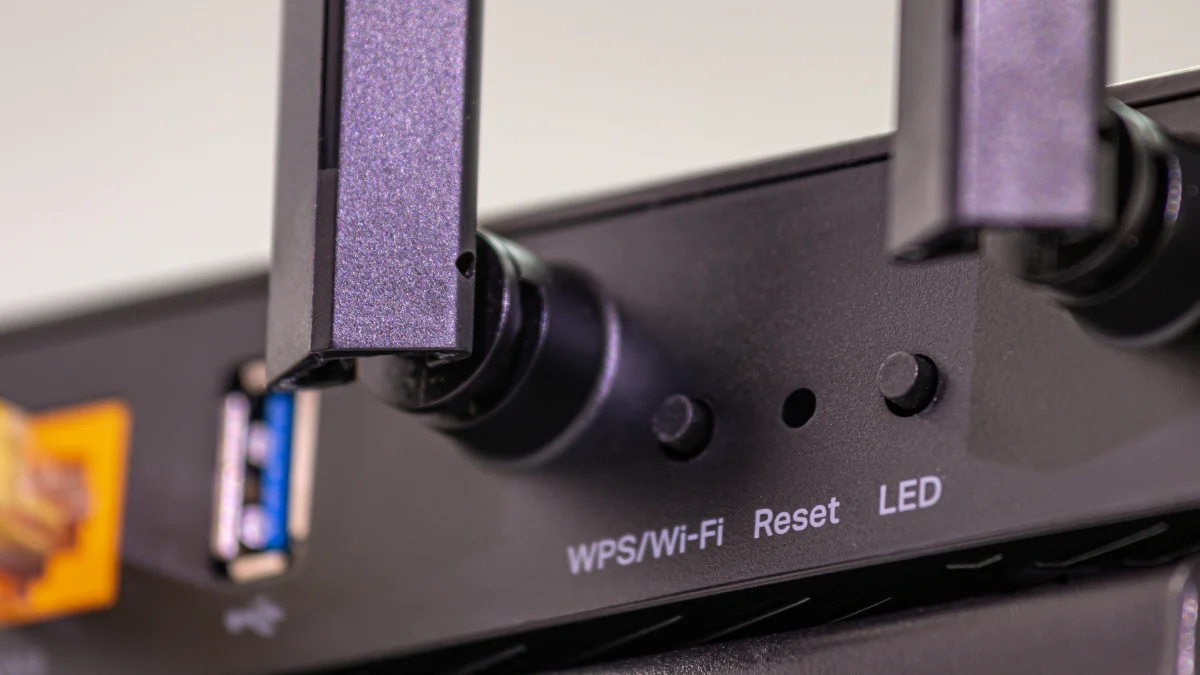
Questions such as what is WPS on a modem or what is the WPS light on a modem are frequently asked by wireless internet users. WPS on a modem is a setup mechanism that enables quick pairing when adding a device to a Wi-Fi network without manually entering the SSID/password. WPS speeds up the initial connection/pairing process by automatically transferring existing Wi-Fi security settings (e.g., WPA2/WPA3) to the device. Modernize and secure your network infrastructure with GlassHouse network and security solutions!


2.

How Is WPS Used?

Using WPS consists of a few simple steps. Although PIN-based pairing is common in WPS, it is not recommended from a security standpoint because it can be vulnerable to brute-force attacks. The 8-digit PIN is typically printed on the back of WPS-enabled modems. While PIN-based pairing can provide fast setup in some scenarios, it should be disabled where possible due to security risk; if WPS is used, more secure options such as push-button (PBC) should be preferred. Another method you can use for a WPS connection is the WPS button. When you press the WPS button on the modem, the WPS light starts blinking. You then need to select WPS on the device you want to connect. This process usually must be completed within 2 minutes. With this method, the connection is established automatically and no password entry is required.

3.

What Does WPS Do?

WPS makes it easier to add devices to a Wi-Fi network; the actual security level primarily depends on WPA2/WPA3 and strong password policies, while WPS can introduce additional risk—especially if the PIN method is enabled. When WPS is used, in most scenarios the device is added to the network either without entering a password (PBC) or by pairing via PIN; the WPA2/WPA3 password does not need to be entered separately. On some modems, after a high number of failed WPS PIN attempts, the WPS function may be temporarily locked (rate-limit/lockout); this behavior varies by device. After the WPS button is pressed, the device that initiates a WPS request within a defined time window is paired; this process works via a time window rather than “recognition.” Therefore, to improve security, disabling the WPS PIN method—or disabling WPS entirely—is a more appropriate approach.

4.

How Do You Turn Off WPS?

If you want to disable the modem’s WPS feature, follow these steps:

  • Access the admin panel by entering the modem/router IP address into your browser’s address bar. (Typically: 192.168.1.1 or 192.168.0.1)
  • Then log in with your username and password.
  • Go to the Wireless (Wireless / Wi-Fi) Settings menu.
  • Find the WPS / Wi-Fi Protected Setup section to disable the WPS feature.
  • Set WPS to Off (Disable / Off).
  • Click “Save / Apply” and restart the modem if necessary.

Is WPS Off, and How Can You Tell?

  • If the WPS light on the modem is not on,
  • If the modem interface shows WPS: Disabled / Off,
  • If a new device cannot connect via WPS, then WPS is disabled.

You may also find our content explaining DNS change methods interesting. Also, click to review our professional services provided by the GlassHouse expert team!

Other Blogs

CONTACT FORM

Contact Us

Complete the form to get in touch with us! Let's build the infrastructure of success for your IT operations together.

Please do not leave blank!
0 / 250
Please do not leave blank!